
By default, if a members status is active, members profiles are visible to other members in the members area Directory.
Whilst members are able to restrict which profile fields are publicly visible to other members by configuring their privacy settings on their members area profile, their basic details, such as name, will still be visible to others.
Your company may have members who's profiles should not be visible to others. To set their profile to be private follow the rest of this guide.
Private Profile
To remove a profile from being visible in the Directory, find the member in the administrative area and select the Summary tab.
The Private profile checkbox, located at the bottom left under the GDPR and Privacy section, should be ticked, as shown below.
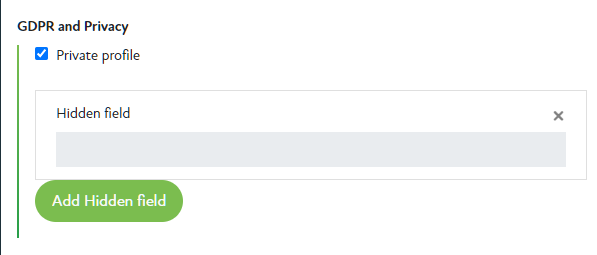
Press the Save button at the top right of the page to save the updated member settings.
You may wish to verify the member is now not visible in the Directory by logging in to the members area and attempting to find the member in the Directory.
Comments
0 comments
Article is closed for comments.